Remote desktop abuse thrives on misconfigured permissions, weak authentication, and exposed ports. Fix these issues by restricting access to specific groups, enforcing multi-factor authentication, and hiding services behind a bastion host or jump server to prevent direct internet exposure.
Mistake 1: Leaving Default Permissions on Remote Desktop Users Group
The default configuration for many operating systems allows any authenticated domain user to connect via remote desktop. This setting assumes that all users with network access should have administrative-level remote access to any machine. Attackers exploit this by using low-privilege credentials to gain initial access to high-value servers.
Why it hurts: An attacker who compromises a standard user account can immediately pivot to any server with remote desktop enabled. This bypasses the need to escalate privileges locally or find additional vulnerabilities. The attacker gains a shell with the same rights as the compromised user, which often includes access to sensitive data and internal network resources.
The fix: Remove the "Domain Users" group from the "Remote Desktop Users" group on all servers. Explicitly add only the specific security groups that require remote administrative access. This ensures that only authorized personnel can connect, reducing the attack surface significantly.
Mistake 2: Exposing Remote Desktop Services Directly to the Internet
Many organizations open port 3389 to the public internet to allow remote work. This exposes the service to automated scanning tools and brute-force attacks from anywhere in the world. Attackers continuously probe for open ports and vulnerable versions of the remote desktop protocol.
Why it hurts: Direct internet exposure allows attackers to bypass internal network controls. They can attempt to exploit known vulnerabilities in the remote desktop protocol or guess weak passwords. Even with strong passwords, the constant volume of attempts increases the likelihood of a successful breach through credential stuffing or replay attacks.
The fix: Never expose remote desktop services directly to the internet. Use a bastion host, also known as a jump server, as a single entry point. Require users to connect to the bastion host first using a secure method, then initiate remote desktop connections from there. This hides internal servers from external scanners.
Mistake 3: Relying Solely on Password Authentication for Remote Access
Passwords are often the weakest link in remote access security. Users reuse passwords, choose weak combinations, or fall victim to phishing attacks. Attackers use stolen credentials to authenticate directly to remote desktop services, bypassing other security controls.
Why it hurts: Password-only authentication provides no protection against credential theft. If an attacker obtains a valid username and password, they can log in from any location. This is particularly dangerous for remote desktop because it grants immediate interactive access to the system, allowing for rapid data exfiltration or lateral movement.
The fix: Enforce multi-factor authentication for all remote desktop connections. Require a second form of verification, such as a hardware token or a mobile authenticator app, in addition to the password. This ensures that even if credentials are stolen, the attacker cannot complete the login process without the second factor.
Mistake 4: Disabling Network Level Authentication for Legacy Support
Network Level Authentication requires users to authenticate before a full remote desktop session is established. Some administrators disable this feature to support older operating systems or specific applications. This creates a significant security gap by allowing unauthenticated connections to reach the server.
Why it hurts: Without Network Level Authentication, attackers can initiate a connection without providing credentials upfront. This allows them to exploit vulnerabilities in the remote desktop protocol before authentication occurs. It also enables man-in-the-middle attacks where an attacker intercepts the connection and steals credentials during the authentication process.
The fix: Enable Network Level Authentication on all remote desktop hosts. Ensure that all client machines are updated to support this feature. If legacy systems must be supported, isolate them in a separate network segment with restricted access and monitor them closely for suspicious activity.
Mistake 5: Allowing Remote Desktop Through Unrestricted Firewalls
Firewall rules that allow remote desktop traffic from any source IP address provide no protection against internal threats. Attackers who breach the perimeter can move laterally to any machine with open remote desktop ports. This unrestricted access facilitates rapid movement across the network.
Why it hurts: Unrestricted firewall rules allow attackers to pivot freely within the internal network. They can target high-value assets from any compromised machine, making it difficult to trace the origin of the attack. This lack of segmentation reduces the effectiveness of other security controls and increases the potential impact of a breach.
The fix: Implement strict firewall rules that limit remote desktop access to specific IP addresses or subnets. Use network segmentation to isolate sensitive systems and restrict remote desktop traffic to only those segments where it is absolutely necessary. Regularly review and update firewall rules to reflect current operational needs.
See also: What Is User Provisioning: The Hidden Access Risk · Is Port Scanning Illegal? Legal Boundaries and Technical Risks
Mistake 6: Failing to Monitor Remote Desktop Sessions for Anomalies
Remote desktop sessions are often monitored infrequently or not at all. Administrators assume that access logs are sufficient for security auditing. This passive approach fails to detect active attacks, such as unauthorized access or unusual session behavior, in real-time.
Why it hurts: Without active monitoring, attackers can operate undetected for extended periods. They can exfiltrate data, install malware, or create persistent backdoors without triggering alerts. This delay in detection allows attackers to establish deep footholds within the network, complicating incident response and recovery efforts.
The fix: Implement real-time monitoring for remote desktop sessions. Alert on unusual login times, geographic locations, or session durations. Use behavioral analytics to detect anomalies in user activity, such as rapid file access or unexpected command execution. This helps identify and respond to potential breaches quickly.
Mistake 7: Neglecting to Patch Remote Desktop Software Regularly
Remote desktop software contains known vulnerabilities that attackers actively exploit. Failing to apply security patches leaves systems exposed to these threats. Attackers use automated tools to scan for unpatched systems and exploit known vulnerabilities to gain access.
Why it hurts: Unpatched remote desktop software provides a direct path for attackers to execute code on the server. This can lead to complete system compromise, data theft, or the installation of ransomware. Regular patching is critical to closing these vulnerabilities and maintaining the integrity of remote access infrastructure.
The fix: Establish a rigorous patch management process for remote desktop software. Apply security updates as soon as they are released. Test patches in a staging environment before deploying them to production systems. Regularly verify that all systems are running the latest secure versions of remote desktop software.
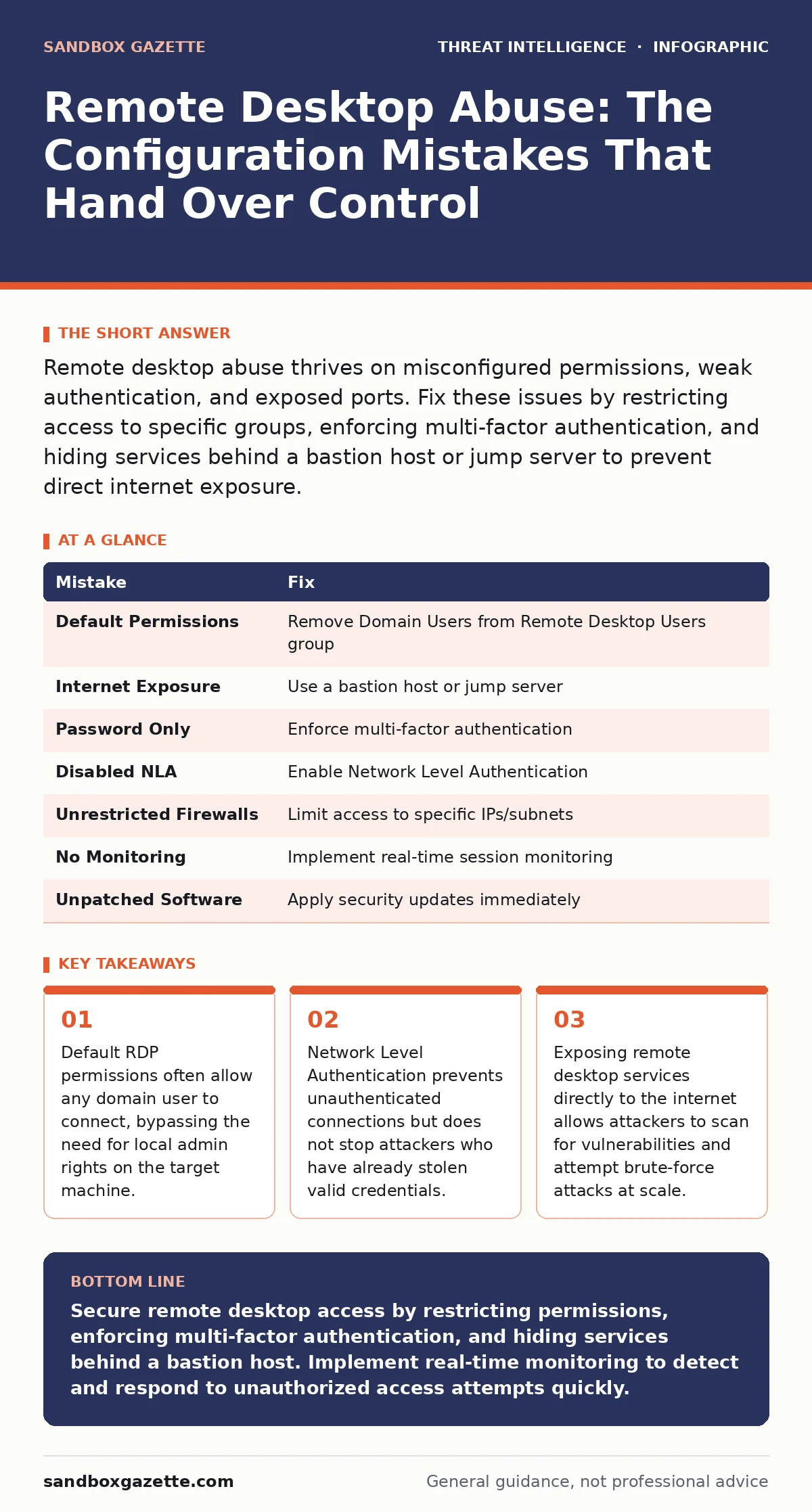
| Mistake | Fix |
|---|---|
| Default Permissions | Remove Domain Users from Remote Desktop Users group |
| Internet Exposure | Use a bastion host or jump server |
| Password Only | Enforce multi-factor authentication |
| Disabled NLA | Enable Network Level Authentication |
| Unrestricted Firewalls | Limit access to specific IPs/subnets |
| No Monitoring | Implement real-time session monitoring |
| Unpatched Software | Apply security updates immediately |
Key takeaways
- Default RDP permissions often allow any domain user to connect, bypassing the need for local admin rights on the target machine.
- Network Level Authentication prevents unauthenticated connections but does not stop attackers who have already stolen valid credentials.
- Exposing remote desktop services directly to the internet allows attackers to scan for vulnerabilities and attempt brute-force attacks at scale.
Secure remote desktop access by restricting permissions, enforcing multi-factor authentication, and hiding services behind a bastion host. Implement real-time monitoring to detect and respond to unauthorized access attempts quickly.
Frequently asked questions
How do I know if my remote desktop is exposed to the internet?
Use an external port scanning tool to check if port 3389 is open and accessible from the internet. If the port is reachable, your remote desktop service is exposed.
Can multi-factor authentication prevent all remote desktop attacks?
Multi-factor authentication significantly reduces the risk of credential-based attacks but does not protect against vulnerabilities in the remote desktop protocol or zero-day exploits.
What is the difference between a bastion host and a VPN?
A bastion host is a single, hardened server that acts as a gateway for remote access, while a VPN creates a secure tunnel for all network traffic. Both can be used to secure remote desktop access.
How often should I review remote desktop permissions?
Review remote desktop permissions at least quarterly or whenever there are changes in personnel or roles. Ensure that only authorized users have access and remove unnecessary permissions promptly.
How this guide was produced: written by the Sandbox Gazette editorial team with AI assistance, checked against the public references listed below, and reviewed when the facts change. See our editorial policy or report an error.