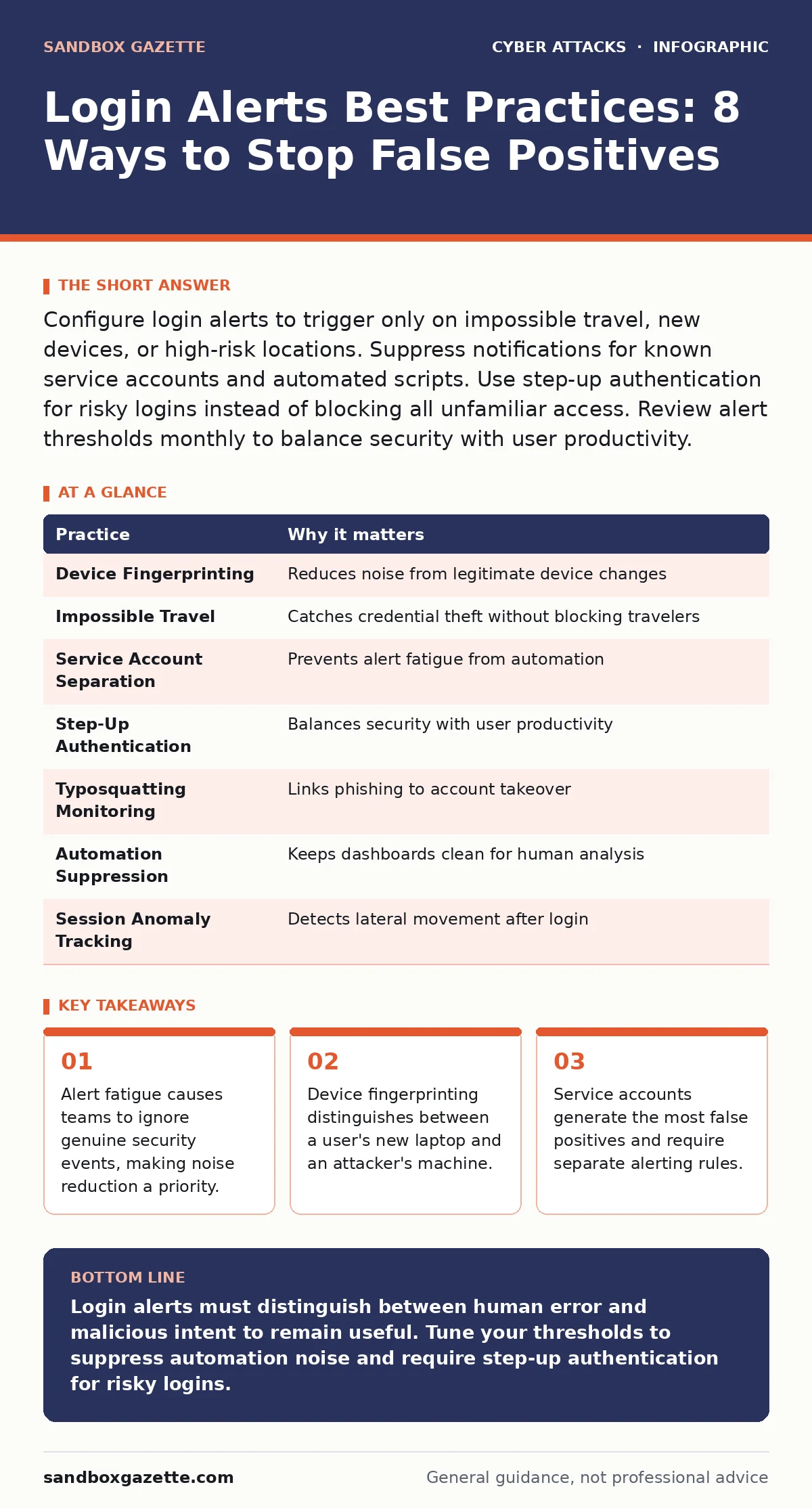
Configure login alerts to trigger only on impossible travel, new devices, or high-risk locations. Suppress notifications for known service accounts and automated scripts. Use step-up authentication for risky logins instead of blocking all unfamiliar access. Review alert thresholds monthly to balance security with user productivity.
1. Filter by Device Fingerprint First
Login alerts based solely on username and password match every time a user changes devices. This creates noise that drowns out real threats. Device fingerprinting identifies the hardware, browser, and operating system characteristics of the client. You treat a login from a recognized device as low risk. You treat a login from an unknown device as high risk. This distinction stops alerts for employees who simply buy a new laptop. It ensures that alerts fire when an attacker uses a fresh machine.
Tip: Configure your identity provider to suppress alerts for logins from devices previously registered in your system. Only trigger alerts when the device ID is completely unknown to your infrastructure.
2. Implement Impossible Travel Rules
Geolocation alerts trigger when a user logs in from two distant locations in a short time. This is known as impossible travel. If a user logs in from New York and then from London within 10 minutes, physics makes this impossible. This indicates credential theft or session hijacking. Standard alerts fire for every international login, which is common for global teams. Impossible travel rules add a time component to location data. This reduces false positives for traveling employees while catching automated attacks.
Tip: Set a minimum time window for location changes. Define a threshold where the travel time required exceeds the elapsed time between logins. Adjust this window based on your organization's typical travel patterns.
3. Separate Service Account Alerts
Service accounts run automated scripts, backups, and integrations. These accounts log in frequently and often from multiple locations. Treating service accounts like human users generates thousands of false alerts. Security teams ignore these alerts quickly. This blindness extends to real attacks on those accounts. You must categorize service accounts differently. They should trigger alerts only on configuration changes or access from unauthorized IP ranges.
Tip: Tag all service accounts in your identity management system. Create a separate alerting policy for these tags that ignores standard login anomalies. Focus alerts on privilege escalation or unusual API calls instead.
4. Require Step-Up Authentication for Risk
Blocking a login entirely when an alert fires causes business disruption. Users call support to unlock accounts. This delays work and increases ticket volume. Step-up authentication adds a second factor only when risk is detected. The user logs in with a password, then receives a prompt for a code or biometric scan. This verifies identity without blocking access. It balances security with usability. Attackers rarely have the second factor.
Tip: Configure conditional access policies to require multi-factor authentication only when the risk score exceeds a specific threshold. Allow seamless access for low-risk logins from trusted networks and devices.
5. Monitor for Typosquatting Redirects
Attackers register domains that look like your company login page. This is typosquatting. Users enter credentials on these fake sites. The attacker then uses those credentials to log in to your real system. Standard login alerts see this as a legitimate login. They do not detect the initial phishing step. You must monitor for logins that originate after a redirect from a suspicious domain. This connects the phishing attempt to the account takeover.
Tip: Implement URL logging in your web proxies. Alert when a user accesses a domain similar to your login portal. Cross-reference these accesses with subsequent successful logins to your real system.
See also: Can Password Managers Be Hacked? Risks and Mitigation · How to Avoid Email Spoofing: Stop Forged Messages at the Gate
6. Suppress Alerts for Known Automation
CI/CD pipelines, monitoring tools, and backup systems log in automatically. These systems use API keys or certificates. They do not use passwords. Alerts for these logins provide no value. They clutter the security dashboard. You identify these sources by their IP addresses or user agent strings. You create allowlists for these specific patterns. This keeps the alert queue clean for human behavior analysis. It prevents alert fatigue among security analysts.
Tip: Review your application logs weekly. Identify IP addresses and user agents that generate high volumes of logins. Add these to a suppression list in your alerting configuration. Review the list quarterly to remove decommissioned services.
7. Track Session Anomalies, Not Just Logins
A successful login is only the first step. Attackers often use stolen credentials to access low-privilege accounts. They then move laterally to sensitive data. Login alerts do not detect this movement. You must monitor session behavior after login. Look for downloads of large files, access to restricted directories, or changes to user settings. These actions indicate compromise even if the login itself looked normal. This shifts focus from entry to impact.
Tip: Configure alerts for unusual data access patterns within the first hour of a session. Trigger notifications when a user accesses resources they never touched before. Combine this with login data for context.
| Practice | Why it matters |
|---|---|
| Device Fingerprinting | Reduces noise from legitimate device changes |
| Impossible Travel | Catches credential theft without blocking travelers |
| Service Account Separation | Prevents alert fatigue from automation |
| Step-Up Authentication | Balances security with user productivity |
| Typosquatting Monitoring | Links phishing to account takeover |
| Automation Suppression | Keeps dashboards clean for human analysis |
| Session Anomaly Tracking | Detects lateral movement after login |
8. Integrate with Incident Response Workflows
Alerts are useless if they sit in an inbox. You must route login alerts to your security operations platform. This platform correlates login data with other signals. It prioritizes alerts based on severity. It assigns them to analysts automatically. This reduces response time. It ensures that high-risk logins get immediate attention. Low-risk alerts are logged for review. This integration turns raw data into actionable intelligence.
Tip: Use standard protocols like Syslog or STIX/TAXII to feed login alerts into your security information and event management system. Create automated playbooks for common alert types to speed up triage.
9. Review Alert Effectiveness Monthly
Alert configurations drift over time. New applications are added. User behavior changes. Old rules become noisy. You must review alert performance regularly. Look at the ratio of false positives to true positives. Adjust thresholds based on this data. Involve application owners in the review. They understand their user base. This continuous improvement keeps the system accurate. It ensures that security measures evolve with the organization.
Tip: Schedule a monthly review with your security team. Analyze the top 10 alert sources. Identify patterns of false positives. Update suppression lists and thresholds accordingly. Document changes for future reference.
Key takeaways
- Alert fatigue causes teams to ignore genuine security events, making noise reduction a priority.
- Device fingerprinting distinguishes between a user's new laptop and an attacker's machine.
- Service accounts generate the most false positives and require separate alerting rules.
Login alerts must distinguish between human error and malicious intent to remain useful. Tune your thresholds to suppress automation noise and require step-up authentication for risky logins.
Frequently asked questions
How do I reduce false positive login alerts?
Filter alerts by device fingerprint and geolocation. Suppress notifications for known service accounts and automated scripts. Use impossible travel rules to catch only physically impossible logins.
What is the difference between login alerts and account takeover detection?
Login alerts trigger on access attempts. Account takeover detection monitors behavior after login. Combining both provides full visibility into the attack lifecycle.
Should I block all logins from new devices?
No, this blocks legitimate users. Use step-up authentication instead. This verifies identity without disrupting business operations. It balances security with usability.
How often should I review my alerting rules?
Review them monthly. User behavior and application usage change frequently. Regular tuning prevents alert fatigue and ensures accurate threat detection.
How this guide was produced: written by the Sandbox Gazette editorial team with AI assistance, checked against the public references listed below, and reviewed when the facts change. See our editorial policy or report an error.